15. Exercise: Framing Favorite Toys
Framing Favorite Toys Exercise
Framing Favorite Toys
During this exercise, you'll set up your first layout by modifying some of the boilerplate android code.
Exercise Code
Exercise: T01.01-Exercise-CreateLayout
To open pre-existing Android code, select the Import Project option from the Android Studio dialog. You can close your currently open project to get back to the Android Studio starting menu.
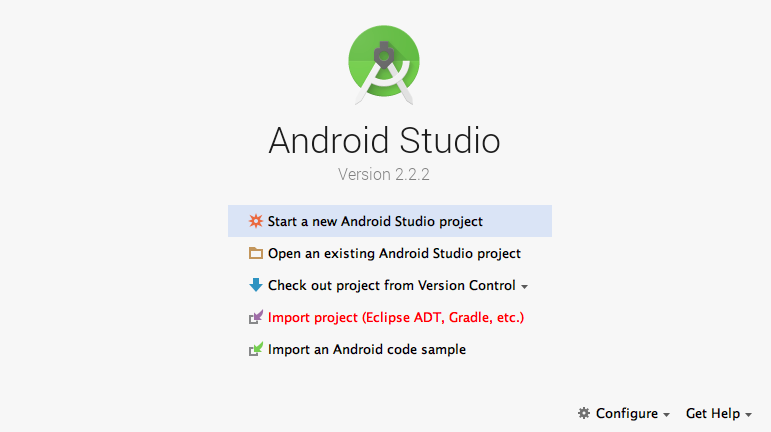
Make sure to make use of the TODOs comments. They will guide you very explicitly through what you need to do. In this exercise, you'll be working with only two files: app/build.gradle (not to be confused with the build.gradle not in the app folder) and activity_main.xml.
activity_main.xml is the layout file that determines what is shown in the MainActivity.java file. It has a ConstraintLayout surrounding a TextView. In this exercise, you'll change the ConstraintLayout to a FrameLayout. A FrameLayout is a layout that generally contains one view or overlapping views. You'll also update a bunch of attributes for the TextView.
In the app/build.gradle you simply need to delete the ConstraintLayout dependency.
Framing FavoriteToys
SOLUTION:
- Change the ConstraintLayout to a FrameLayout.
- Remove the old ConstraintLayout layout attributes.
- Give the TextView 16dp of padding, and set the text size to 20sp.